
Conversations
Sessions, steering, labels, and sharing in Chat.
Chat is the everyday surface for talking to agents. This page covers the mechanics that make it more than a message box.
Sessions
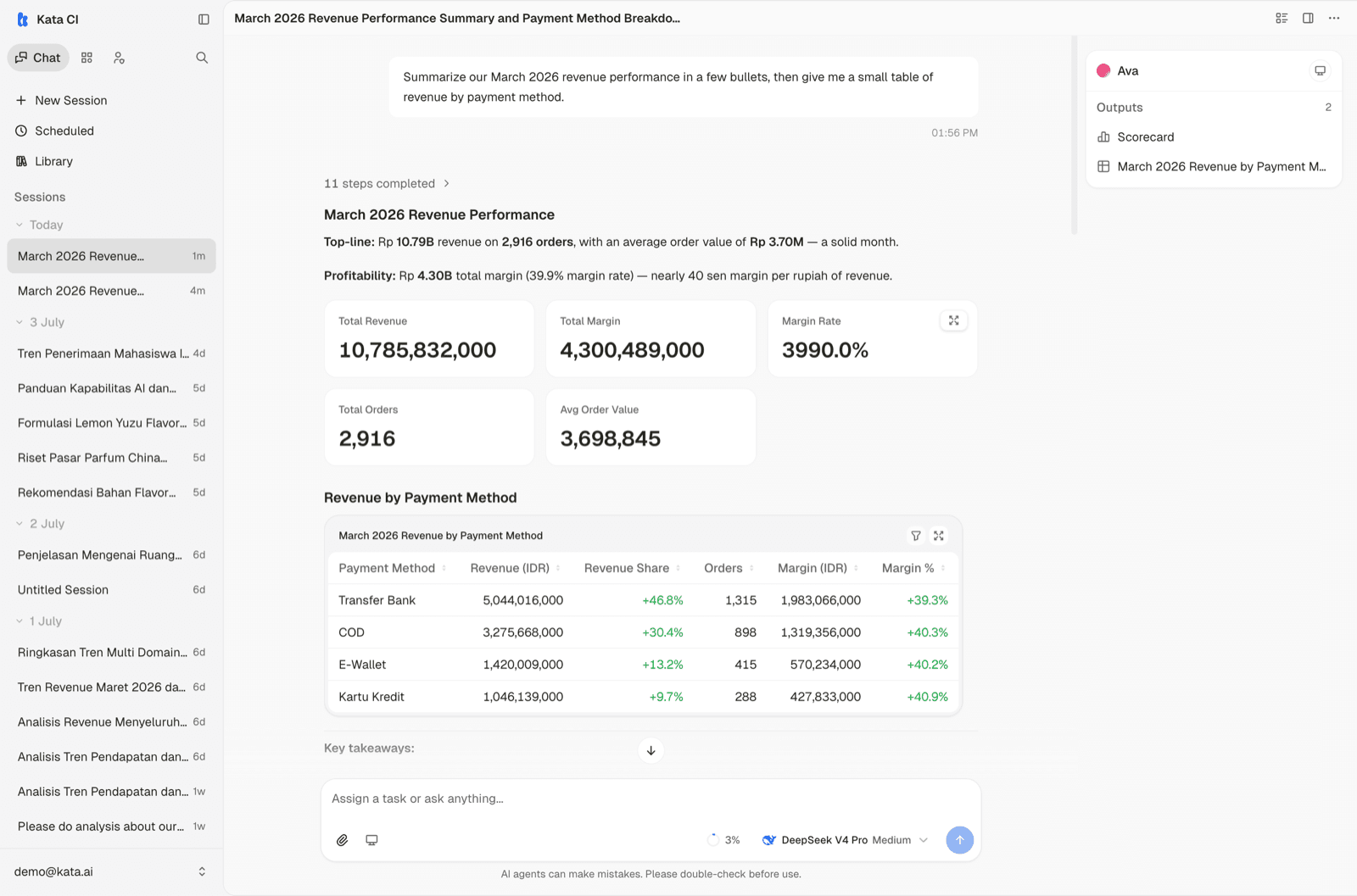
Every conversation is a session with one agent. Your history lives in the sidebar grouped by day; search it, rename sessions, or delete ones you no longer need. Sessions keep their full context, so you can return to Tuesday's analysis on Friday and pick up where you left off.
Steering a running agent
You never have to wait for a run to finish:
- Steer: send a message while the agent works and it adjusts course without starting over. "Skip the intro, go straight to the numbers."
- Stop: cancel a run at any point. Partial work is kept.
For long tasks, agents show a plan and tick off steps as they go, so you can see where things stand at a glance.
After the answer
Around every response you get more than text:
- Sources: grounded answers link the documents or metrics they came from. Check them.
- Follow-ups: suggested next questions appear under the response when the agent has somewhere useful to go next.
- Response actions: copy, retry, or rate any response from the icons under it.
- Model and effort: the composer shows which model runs and at what reasoning effort; switch them mid-conversation if the agent has multiple models attached.
Labels
Labels organize sessions across time: weekly-report, vendor-review,
urgent. Filter the sidebar by label to pull up everything related to one
stream of work.
Sharing
The share menu creates a read-only link to a conversation. Anyone with the link can read the full conversation and its artifacts. Revoke a share at any time; the link stops working immediately.
Share links are readable by anyone who has them. For work that should stay inside a review process, use a Case instead.
Voice
On mobile you can speak instead of typing, and have responses read aloud, when your deployment has voice enabled.
Getting around
A few navigation habits that pay off:
- Search (the magnifier next to the app switcher) finds past sessions by content, not just title.
- The app switcher at the top of the sidebar jumps between Chat, the Console, and Admin, for the surfaces your role can see.
- The account menu in the bottom-left corner holds your settings: General, Preferences (instructions you want every agent to respect), Connections (your personal app connections), and Memory. It is also where you switch or create workspaces.
Feedback
Rate any response with the thumbs buttons and add a note if you want. This is not a formality: feedback feeds the improvement loop your builders run, and repeated corrections become permanent behavior changes. See how in Improve your agents.